
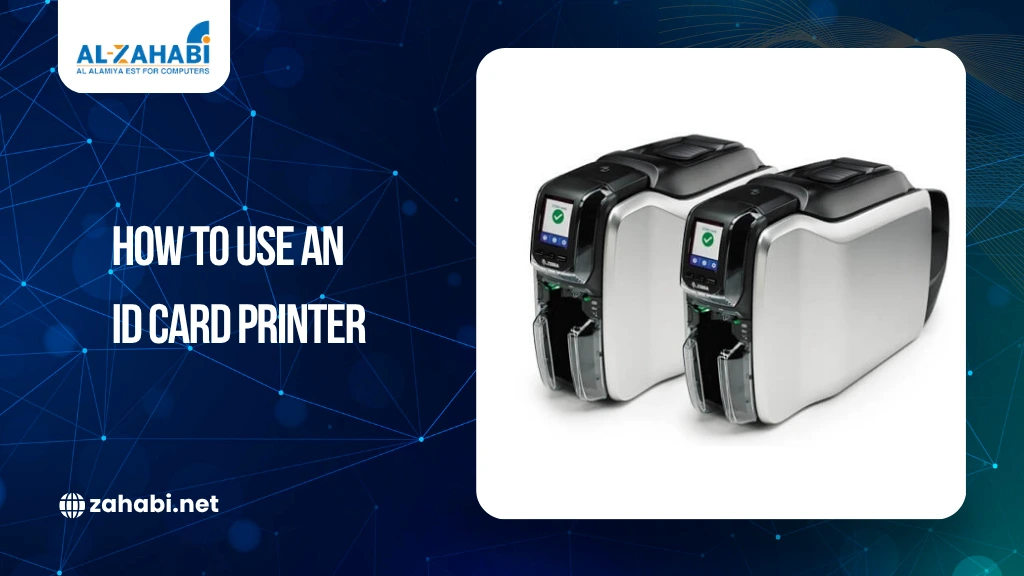
Many businesses, schools, hospitals, and event companies now prefer printing ID cards in-house instead of relying on third-party vendors. It saves time, improves security, and allows organizations to issue cards instantly whenever needed. For example, a growing company can create employee ID cards on the first joining day instead of waiting several days for outsourced printing.
If you are learning how to print an ID card for the first time, the process may initially seem technical. You need the right printer, PVC cards, ribbons, software, and correct print settings. Even small mistakes like dust on the card surface or incorrect alignment can affect the final result, which is why many businesses look for a reliable beginner’s guide to ID card printing before setting up their system.
The good part is that modern ID card printing systems are much easier to use today. With proper setup and a simple workflow, anyone can create professional-quality cards for offices, schools, events, or visitor management systems. This guide explains the complete process in a practical and beginner-friendly way.
Key Takeaways:
- In-house ID card printing helps businesses issue employee and visitor cards faster and more securely.
- Learning how to print an ID card requires the right printer, PVC cards, ribbons, and print settings.
- Direct-to-card printers are ideal for beginner and office ID card printing needs.
- Proper printer setup, card handling, and maintenance improve PVC ID card print quality.
- Test printing and correct alignment help prevent faded colors, ribbon errors, and card misprints.
How Does ID Card Printing Work?
The ID card printing setup process involves transferring a digital design onto a PVC plastic card using a specialized printer. These printers are different from regular office printers because they are designed specifically to print plastic ID cards with accurate color, sharp text, and durable output.
Most organizations use ID cards for employee identification, attendance tracking, access control, student verification, or visitor management. A standard card usually contains the employee’s name, photograph, company logo, department details, and barcode or QR code.
Professional-looking cards depend on three important things: proper printer setup, high-quality PVC cards, and correct print settings. Even a well-designed card can look poor if the printer is not configured correctly.
How to Print an ID Card with the Right Equipment?
Before learning how to print PVC ID cards, it is important to understand the basic equipment required for the process.
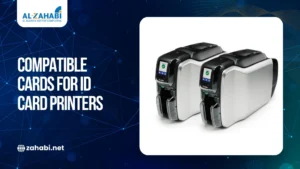
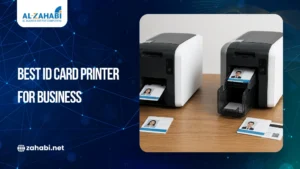
ID Card Printer
An ID card printer is the most important part of the setup. These printers are specially designed to print on PVC plastic cards.
There are two common types of ID card printers used by businesses and institutions.
Printer Type | Best For | Print Quality |
Direct-to-Card Printer | Employee and office cards | Standard |
Retransfer Printer | Security and smart cards | High |
Direct-to-card printers are more commonly used because they are affordable and fast. They work well for office employee cards, visitor badges, and school IDs.
Retransfer printers provide sharper image quality and edge-to-edge printing. They are often used for government IDs, banking cards, or high-security access cards.
For example, a startup company with regular hiring requirements may prefer a direct-to-card printer because it allows quick and cost-effective employee badge printing.
PVC Cards
PVC cards are the industry standard for ID card printing because they are durable and professional-looking.
These cards are commonly used for employee badges, student IDs, membership cards, and access cards. While choosing cards, always ensure they are compatible with your printer model. Poor-quality cards may damage printer rollers or create inconsistent print results.
When handling PVC cards, avoid touching the printable surface directly. Fingerprints and dust particles often leave visible marks after printing.
Printer Ribbon
The ribbon transfers colors and text onto the PVC card surface during the printing process.
Different ribbons are available depending on printing needs. Some are designed for full-color cards, while others support monochrome or dual-sided printing.
Using the wrong ribbon often causes faded colors, ribbon errors, or poor image clarity. This is why businesses usually prefer manufacturer-recommended consumables.
Design Software
Card design software helps create the visual layout of the ID card.
Most businesses include employee photographs, company logos, department names, and barcode systems on the card. Educational institutions may also add student roll numbers and library access details.
A clean and readable design always looks more professional than an overcrowded layout.
How to Choose the Right Printer for Your Requirements?
Different organizations require different printing setups based on their daily operations.
Direct-to-Card Printers for Regular Office Use
Direct-to-card printers print directly on the PVC surface. They are suitable for schools, offices, visitor management systems, and small businesses.
One major advantage of these printers is speed. HR teams can quickly print cards whenever new employees join the company. This reduces dependency on external vendors and improves onboarding efficiency.
Retransfer Printers for Advanced Security
Retransfer printers first print onto a film layer and then transfer the image to the card surface. This process produces better image clarity and full-card printing coverage.
These printers are commonly used in government offices, banking systems, and organizations requiring advanced security cards.
Although retransfer printers are more expensive, they deliver premium-quality results.
How to Set Up the ID Card Printer Correctly?
Proper setup is one of the most important parts of the ID card printing process. A poorly configured printer can lead to alignment issues, ribbon errors, or faded prints.
Start by connecting the printer through USB, Ethernet, or wireless setup, depending on your system. Once connected, install the official drivers provided by the manufacturer.
After installing the drivers, load the ribbon carefully inside the printer. Then insert blank PVC cards into the card tray. Many beginners install ribbons incorrectly, which later causes printing problems.
Before printing actual cards, run a test check. Verify that the printer recognizes the ribbon properly and the cards are aligned correctly. Cleaning the rollers before use also helps improve print consistency.
Learning how to use an ID card printer properly starts with understanding setup and maintenance basics.
1. Design a Professional ID Card Layout
The design stage directly affects the readability and overall appearance of the card.
A professional employee ID card usually includes the employee’s name, photograph, company logo, designation, department, and barcode or QR code. The design should remain simple and easy to understand.
Avoid using excessive graphics or decorative elements. Too much information can make the card difficult to read.
Many organizations maintain consistent branding across all cards. For example, hospitals often use different color themes for doctors, nurses, and visitors to simplify identification.
Image quality also matters significantly. Low-resolution photographs may appear blurry after printing. Always use clear headshots and high-quality logos to improve the final output.
2. Prepare PVC Cards Before Printing
Card preparation is another important step while learning how to print PVC ID cards.
PVC cards should always be handled carefully. Fingerprints, scratches, or dust can affect print quality and create visible marks on the final card.
It is best to hold cards from the edges and keep them inside sealed packaging until required. Exposure to dust and moisture can reduce printing consistency.
Card compatibility is equally important. Different printers support different card thickness levels. Using incompatible cards may lead to feeding issues, card jams, or misaligned printing.
This is why businesses usually purchase PVC cards recommended by the printer manufacturer.
3. Configure Print Settings Properly
Correct printer settings help produce clean and professional-looking cards.
The first setting to check is print resolution. Higher resolution improves image clarity and sharpness. Standard employee ID cards usually work well with regular settings, while high-security cards may require advanced configurations.
You should also choose between single-sided and dual-sided printing. Single-sided cards are commonly used for office IDs and visitor passes. Dual-sided printing is useful when additional information needs to be printed on the back side.
Color settings also play an important role. Incorrect brightness or contrast settings can affect company branding colors. This is why businesses often test color accuracy before bulk printing.
How to Print an ID Card: Step-by-Step Process
Before printing large quantities, always start with a sample card.
A test print helps identify issues related to alignment, color quality, barcode readability, and photo clarity. This step prevents wastage of ribbons and PVC cards.
These are some of the most important steps to print ID cards efficiently.
After printing the sample card, inspect it carefully. Look for faded colors, ribbon lines, cropped images, or smudges. If any problem appears, stop the process and adjust the settings before continuing.
Organizations that print cards regularly usually maintain a standard testing process to ensure consistent quality.
Understanding the Complete Printing Workflow
The entire ID card printing process becomes easier when viewed as a workflow.
Stage | Process |
Design | Create the card layout |
Setup | Install the ribbon and configure the printer |
Card Preparation | Load PVC cards properly |
Printing | Print sample and final cards |
Verification | Check quality and functionality |
This workflow is commonly followed by schools, offices, hospitals, and event management companies.
Common Printing Problems and Their Solutions
Even experienced users face occasional printing issues. Understanding these problems helps reduce downtime and wasted materials.
Misaligned printing usually happens because of incorrect card positioning or calibration issues. Running printer calibration often solves this problem.
Faded colors are commonly caused by low-quality ribbons, dust buildup, or incorrect print settings. Using manufacturer-approved ribbons improves print consistency significantly.
Ribbon errors generally occur because of incorrect installation or incompatible ribbon types. This is why compatibility checks are important before installation.
Card jams may happen because of bent PVC cards or dust inside the rollers. Regular cleaning helps avoid these problems.
For example, many organizations that print employee cards daily schedule weekly cleaning sessions to maintain consistent print quality.
Improving ID Card Print Quality
Consistent print quality depends heavily on maintenance and material quality.
Using high-quality PVC cards improves color transfer and overall durability. Cheap cards often create uneven printing results and may damage printer components over time.
Regular cleaning is equally important. Most manufacturers recommend cleaning the printer after every ribbon cycle. This helps remove dust buildup and prevents roller contamination.
Image quality should also not be ignored. Low-resolution logos and photographs reduce professionalism. Businesses usually use vector logos and HD employee photos for better results.
Proper storage of ribbons and PVC cards also improves reliability. These materials should always be stored in dry and dust-free environments.
This is an important part of any professional PVC card printing guide.
Real-World Applications of ID Card Printing
Different industries use in-house printing systems for different operational requirements.
Many offices now print employee ID badge solutions internally because it speeds up onboarding and improves security. For example, an IT company hiring multiple employees every month can issue cards instantly without waiting for external vendors.
Schools and universities also rely heavily on in-house card printing systems. Student cards are commonly used for attendance tracking, library access, and campus security.
Corporate offices often use temporary visitor badges for better access management. These cards usually contain visitor details, meeting information, and access duration.
This growing demand for internal printing systems has made the employee ID card printing guide an important operational resource for many HR teams.
Final Thoughts
Learning how to print an ID card becomes much easier when the process is broken into simple and practical steps. With the right printer, quality PVC cards, proper setup, and regular maintenance, businesses can create professional-looking ID cards quickly and efficiently. Whether you are printing employee badges, student cards, or visitor passes, focusing on print quality and proper testing will help ensure consistent results every time.
FAQs
1. How to print an ID card for office employees?
To print an employee ID card, you need an ID card printer, PVC cards, ribbon, and card design software. First, create the card layout with employee details and photographs. Then configure the printer settings, load the ribbon and cards, and run a test print before printing the final cards.
2. What materials are required for PVC ID card printing?
PVC ID card printing requires blank PVC cards, a compatible ID card printer, printing ribbon, design software, and a computer connection. High-quality materials help improve print clarity and card durability.
3. Why are my ID cards printing with faded colors?
Faded colors usually happen because of low-quality ribbons, incorrect print settings, dust buildup, or poor printer maintenance. Cleaning the printer regularly and using manufacturer-approved ribbons can improve print quality.
4. Can businesses print employee ID cards in-house?
Yes, many businesses now print employee ID cards internally to speed up onboarding and reduce dependency on external vendors. In-house printing also makes it easier to replace lost or damaged cards quickly.
5. Which printer is best for beginner ID card printing?
Direct-to-card printers are generally considered the best option for beginners because they are affordable, easy to use, and suitable for office employee cards, visitor badges, and school IDs.


Add comment